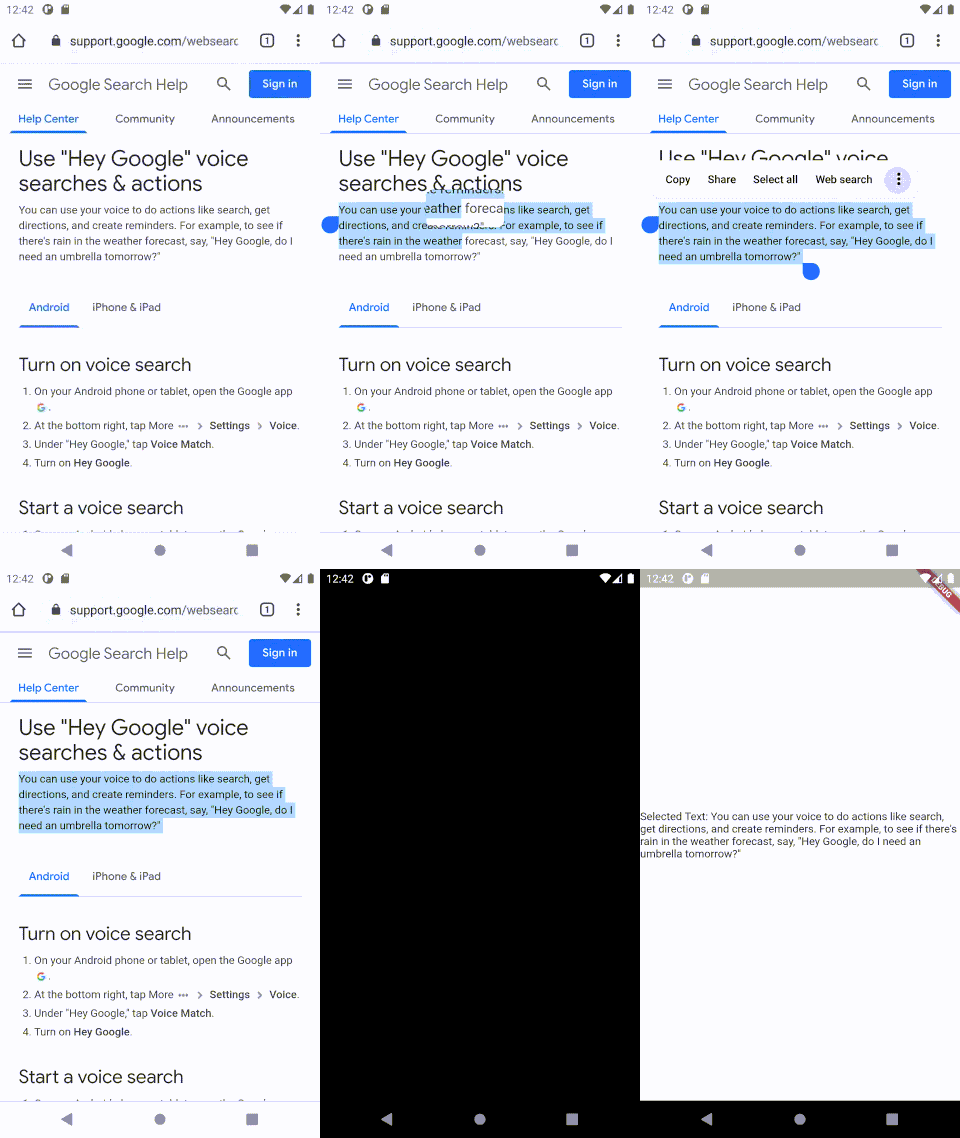
Have you ever wanted to give your user a shortcut, for opening the selected text in your flutter app from anywhere in the android environment?
Like this:

If yes, then you got yourself to the right place. In this article, I’m going to talk about how this can be implemented in flutter with the help of a pub plugin action_process_text, I wrote.
Let’s get started. First, let’s create our flutter project.
flutter create action_process_text_exampleNow, in the pubspec.yaml file, add the package
dependencies:
  action_process_text: <latest version>
Run pub get and get packages.
Now add the following code to AndroidManifest.xml file in the android\app\src\main folder just after the main activity.
<activity android:name="com.example.action_process_text.ActionProcessTextPlugin"
          android:label="Action_Text"
          android:theme="@style/LaunchTheme">
         <intent-filter>
             <action
               android:name="android.intent.action.PROCESS_TEXT" />
               <data android:mimeType="text/plain"/>
               <category
               android:name="android.intent.category.DEFAULT" />
         </intent-filter>
</activity>
The android:label here is the String that will be displayed on selecting the text. So, change that to something relevant to what your app does.
Now that we have completed all the setup, let’s take a look at the usage.
- Import the package.
import 'package:action_process_text/action_process_text.dart';- Write an async function for starting up the plugin in the Constructor of the
StatefulWidget, which will assign the selected text to a variable with the help of await.
This package currently works only in a
StatefulWidgetassetState()has to be called.
class SelectedTextViewPage extends StatefulWidget {
  @override
  _SelectedTextViewPageState createState() => _SelectedTextViewPageState();
}

class _SelectedTextViewPageState extends State<SelectedTextViewPage> {
  _SelectedTextViewPageState() {
    initActionProcessText();
  }

  Future<void> initActionProcessText() async {
    inputText = await ActionProcessText.getInputText;
    setState(() {});
  }

  String inputText = '';

  @override
  Widget build(BuildContext context) {
    return Scaffold(
      body: Center(
        child: Text('Selected Text: $inputText', ),
         ),
    );
  }
}
The ActionProcessText.getInputText is used to get the selected text when the action is performed, otherwise return a blank space "" . It returns a future, so await should be used in a variable declaration.
Then, setState() is performed to rebuild the page, as it would have already started building, without waiting for the inputText to get the future.
The inputText can also be re-used for other purposes when the action is not performed, and InputTextController can also be used instead.
This is how it should look like,
You can find this example project on my repository in GitHub: action_process_text_example.
Drop a like on the package in pub.dev: action_process_text with the source code available on GitHub.
Feel free to report issues/bugs and help me in making the package more awesome.
HAPPY CODING!